
How the connection works
Each Rudder agent needs its own Feishu connection. Think of it as one Feishu bot for one Rudder agent. This keeps ownership clear: messages, runs, source badges, and chat bindings all point back to the agent that owns the conversation. The setup is small. Rudder creates a setup session, opens Feishu or Lark for authorization, stores the app credential after approval, then listens for messages from that bot.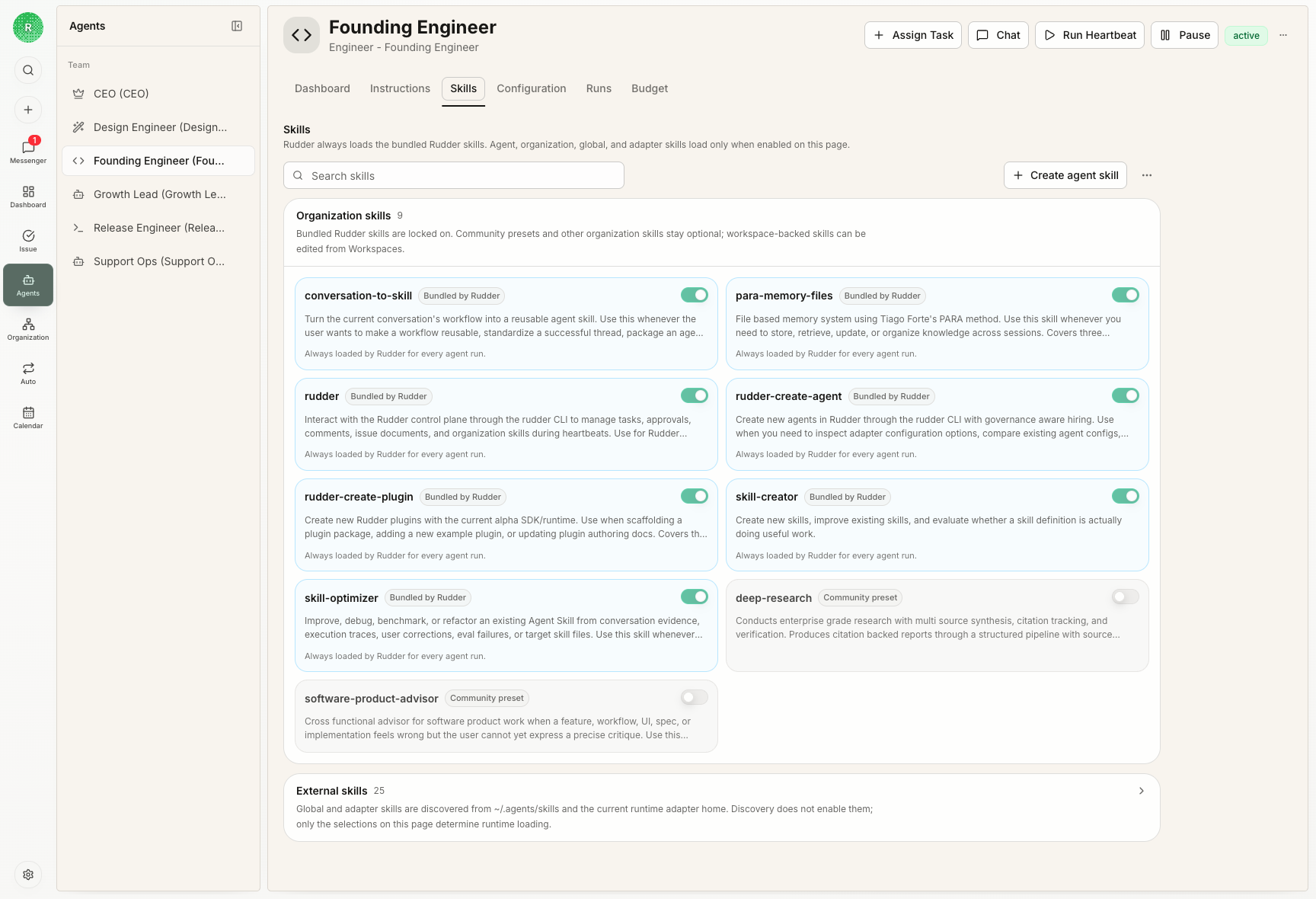 Open the agent detail page for the agent you want to expose in Feishu. The integration belongs to that agent, not to the whole organization.
Before you start
Make sure you have:- a running Rudder organization
- the agent you want to connect
- access to Feishu CN or Lark Global
- permission to authorize or create a Feishu or Lark app for your workspace
Connect the agent
- Open the agent in Rudder.
- Go to
Integrations. - Choose
Feishu CNorLark Global. - Click
Connect. - Feishu or Lark opens with the bot name prefilled. Confirm the app authorization.
- Return to Rudder and wait for the setup status to become connected.
Add two Feishu commands
After the app is authorized, add these two slash commands in Feishu or Lark:| Command | What it does |
|---|---|
/new | Starts a fresh Rudder conversation for the current Feishu chat |
/stop | Stops the active reply if the agent is currently answering |
/new and /stop manually in the app console with the same command names.
Verify the connection
Send a plain text message to the bot from Feishu or Lark. In Rudder, you should see a Messenger or Chat conversation with a Feishu source badge. The linked agent should receive the message through its integration. Try the two commands as well:What to expect in Rudder
Feishu-bound conversations are read-only from the local Rudder chat surface. Replies should come from Feishu or from the agent’s outbound work. If you want to continue the same context inside Rudder as a normal local chat, fork the Feishu conversation. The fork keeps lineage but is no longer bound to the Feishu provider chat.Troubleshooting
| Symptom | Check |
|---|---|
| Setup expires | Start the setup again from the agent Integrations tab. Setup sessions are short-lived. |
| Feishu opens the wrong product | Check whether you selected Feishu CN or Lark Global. |
| Messages are ignored in a group | Mention the bot. Rudder ignores group messages that are not addressed to the bot. |
| The user sees a binding prompt | Bind the Feishu user to a Rudder organization member, then resend the message. |
| A non-text message is dropped | Send text first. File and rich media handling is still being expanded. |
Next steps
Agents
Understand how agents own roles, runtimes, skills, budgets, and integrations.
Create an Agent
Create the agent before connecting it to Feishu or Lark.
Chat and Messenger
See where Feishu messages land inside Rudder.
Contact
Request another IM integration or share a workflow that should be supported.